What you need
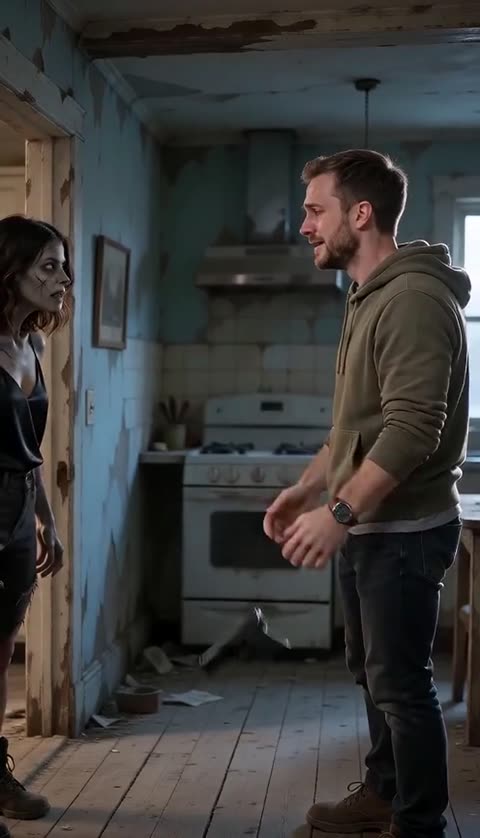
Two photos are enough: one of the survivor and one of the person or pet who turns. The survivor is the person holding the gun; the other photo becomes the infected lover. Use one clear, front-facing subject per photo.
- Photo 1: the survivor. A clear face, even light, nothing covering the eyes.
- Photo 2: the person or pet who turns. Same rules; for a pet, keep the face and fur markings visible.
- A Google account: the video, credits and history stay on your account.
- 2 credits: one video costs 2 credits. A failed render returns them automatically.
You do not need to write a prompt, edit a timeline or upload a video. The story is built into the generator.
Step by step
- Choose the two photos. Open the maker and add Photo 1 and Photo 2. JPG, PNG and WebP are accepted up to 8 MB each. The browser previews the local file before the upload finishes, so you can check that you picked the right person.
- Pick a setting. The scene changes the light and the room around the story: Snowed-In Cabin, Rain-Soaked City or Ruined Chapel. The story beats stay the same.
- Pick a format. Choose 9:16 Portrait for TikTok, Reels and Shorts, or 16:9 Wide for YouTube and a wider frame. The choice changes the composition, not the story.
- Sign in and press generate. The button says what it needs: first the photos, then a Google sign-in, then the credits. If you are short of credits, it tells you the cost before anything is charged.
- Download the video. The render usually takes 2–6 minutes. You can close the page; the video keeps rendering and appears in My videos. Download the MP4 and post it.
9:16 or 16:9?
9:16 fills a phone screen. It is the natural choice for TikTok, Reels and Shorts, and it keeps the survivor and the infected lover close together in the frame.
16:9 gives you a wider frame for YouTube or a desktop player. The composition has more room around the characters, so the ruined room or the wheat field reads more clearly.
Pick one before you generate. The story is the same in both; only the framing changes. If you are posting to a vertical feed, start with 9:16.
What the finished video contains
- A 15-second MP4 with sound.
- Two photos turned into a cinematic zombie-to-romance story.
- A cold present, a hard cut, and a warm memory of the same embrace.
- No watermark and no subscription.
The render is a fresh take each time. The model keeps the faces and the story structure, but small details — the angle of a hand, the exact background, the way a jacket folds — can vary. That is normal for image-to-video generation; it is not a defect by itself.
What happens after you press generate
The job is queued, then rendered. The page shows the status and keeps checking while it is open. If you close the tab, the render continues; the finished video appears in My videos. You do not need to keep the maker open, and you do not need to submit the same photos twice.
When the video is ready, download the MP4 or use the share link. The download is an attachment, not a player page. If the render fails, the status changes to failed and the 2 credits return to your balance.
Common problems and fixes
| What you see | What to change |
|---|---|
| The zombie does not look like the photo | Use a sharper, front-facing photo with even light. Avoid sunglasses, masks, hair over the eyes and heavy beauty filters. |
| The zombie bites instead of hugging | Check that you uploaded the right photo to Photo 2. The story is built to end in a hug; a bite usually means the model could not read the face or the scene. |
| The face changes between the cold and warm halves | Use a photo with one clear face and a fixed detail — a necklace, collar, hoodie or hairstyle — that the model can carry into the memory. |
| The hands look wrong | Try a different crop where the hands are not the main subject. A half-body photo with a clear face often works better than a tight close-up. |
| The video looks like a filter | Use the original photo, not a beauty-filtered one. Keep the face natural and the zombie make-up subtle. |
If the render fails completely, the credits come back. If it succeeds but the result is not what you pictured, read the photo guide before spending credits on another try.
Before you spend credits
A little preparation saves a retry. Check these five things before you press generate:
- Is the survivor's face clear? Both eyes visible, no sunglasses or heavy filter.
- Is the second photo the right person or pet? It is easy to swap the two files when you are uploading from a phone.
- Is there only one subject per photo? A group photo gives the model a choice it should not have to make.
- Have you picked the format? 9:16 for a phone feed, 16:9 for a wider frame. Changing your mind after the render costs another video.
- Are you signed in? The credits and the video need an account; signing in after the upload is fine, but doing it first avoids a lost tab.
If one of the photos fails the check, replace it before you generate. A new photo is free; a retry is another 2 credits.
FAQ
How long does it take?
Most videos are ready in 2–6 minutes. The queue can be longer at busy times. You can close the page while it renders; the video waits in My videos.
Do I need to write a prompt?
No. The story is built into the generator. You choose the photos, the setting and the format; the prompt is not something you paste in.
Can I make it with one photo?
No. The story needs two roles: the survivor and the person or pet who turns. One photo cannot fill both.
What happens if the video fails?
The 2 credits return automatically. You can retry with the same photos. A cash refund is a separate support review and is not the same thing as a credit refund.